



Introduction: The "Now What?" Moment in Self-Hosting
You know the feeling. After weeks of wrestling with Docker containers, configuring reverse proxies, and troubleshooting permissions, your self-hosted setup finally works. Jellyfin streams your movies, Immich backs up your photos, and AdGuard Home blocks those annoying ads. You've got monitoring with Uptime Kuma and automation with Home Assistant. The dashboard looks clean, everything's stable, and... now you're staring at Homarr wondering what's next.
This is the classic self-hosting plateau. You've built a solid foundation—OpenMediaVault 7, Docker, Portainer—and now you're ready for the next phase. But where do you go from here? The options can feel overwhelming. Should you focus on security? Automation? Productivity? In this guide, I'll walk you through the logical next steps based on what I've seen work for dozens of self-hosters who've been exactly where you are right now.
Understanding Your Current Stack (And Its Gaps)
Let's start by analyzing what you've already built. Your current setup is what I call the "media and monitoring foundation." You've got entertainment covered with Jellyfin, personal media management with Immich, network-level ad blocking with AdGuard Home, and automation with Home Assistant. The *arr suite handles media acquisition, and Uptime Kuma keeps an eye on everything.
But here's what's missing—and this is crucial for deciding what to tackle next. You don't have a centralized document or file management system. Your password management is probably still with a cloud service. You're not backing up your Docker configurations or automating your server maintenance. And you might not have proper security monitoring beyond basic uptime checks.
These gaps represent opportunities. The beauty of self-hosting is that each new service you add should solve a real problem or improve your digital life in a meaningful way. You're not just collecting containers—you're building a personalized digital ecosystem.
Category 1: Productivity & Document Management
Nextcloud: Your Personal Cloud Replacement
If I had to recommend just one service to add next, it would be Nextcloud. Think of it as your personal Google Workspace or Dropbox replacement, but with complete control over your data. The core appeal? Centralization. Right now, your files are probably scattered across different services—photos in Immich, media in Jellyfin, documents... somewhere else.
Nextcloud brings everything together. You get file synchronization (like Dropbox), calendar and contacts sync (replacing Google Calendar), collaborative document editing, and a ton of apps through its ecosystem. The real power comes when you start connecting it to your existing services. You can mount your OpenMediaVault shares directly in Nextcloud, creating a unified interface for all your data.
Setup is straightforward with Docker, and the community around it is massive. Start with the basic installation, then explore apps like Deck (Kanban boards), Notes, and News. It becomes the central hub for your digital life beyond media consumption.
Paperless-ngx: Conquer the Paper Mountain
Here's a service that genuinely changes how you interact with physical documents. Paperless-ngx is a document management system that scans, OCRs, tags, and organizes your paperwork. Receipts, bills, tax documents, manuals—all of it becomes searchable and accessible from anywhere.
The magic happens with its automatic tagging system. Upload a utility bill, and Paperless-ngx will extract the date, amount, and company, then apply appropriate tags. You can set up consumption plans to track recurring expenses, and the interface is surprisingly intuitive for such a powerful tool.
You'll need a scanner (I recommend the Fujitsu ScanSnap iX1600 for its reliability and duplex scanning), but once it's running, you'll wonder how you lived without it. It integrates beautifully with Nextcloud too, creating a complete document management ecosystem.
Category 2: Security & Authentication

Vaultwarden: Take Back Your Passwords
This is the security upgrade you didn't know you needed. Vaultwarden is a self-hosted alternative to Bitwarden, the popular password manager. Why host your own password manager? Control, primarily. You decide where your most sensitive data lives, and you're not dependent on a third-party's security practices.
The practical benefits are immediate. You get browser extensions, mobile apps, and desktop clients that sync seamlessly with your instance. The setup is surprisingly simple—it's one of the easiest Docker containers to get running—and the resource usage is minimal. What I love about Vaultwarden is how it handles emergency access and sharing. You can securely share passwords with family members without exposing the actual credentials.
And here's a pro tip: Once you have Vaultwarden running, use it to store all those Docker compose files and configuration details. No more searching through notes apps for that one environment variable.
Authelia or Authentik: Add Layers of Security
Now that you have multiple services exposed (even if just internally), it's time to think about authentication. Both Authelia and Authentik act as single sign-on (SSO) providers for your self-hosted services. Instead of each service having its own login, you get one central authentication portal.
Authelia is lighter and simpler—perfect if you just want basic 2FA protection for your services. Authentik is more feature-rich, with social login options, user directories, and more complex policies. For most beginners, I'd start with Authelia. It integrates beautifully with your reverse proxy (I'm assuming you're using Nginx Proxy Manager or Traefik based on your setup), and the setup guides are excellent.
The security improvement is significant. You're adding two-factor authentication to services that might not support it natively, and you're centralizing access control. It feels professional, like you're running your own little enterprise network.
Category 3: Automation & Infrastructure
Watchtower or Diun: Keep Everything Updated
Here's where we move from "things that do stuff" to "things that maintain stuff." You've got a dozen containers running now. How do you keep them updated? Manually checking Docker Hub and running pulls gets old fast. That's where Watchtower or Diun come in.
Watchtower automatically updates your running Docker containers to the latest image. Set it and forget it. The concern, of course, is stability—what if an update breaks something? That's where Diun offers a different approach. Instead of automatically updating, it notifies you when new images are available. You get a message in your preferred channel (Email, Telegram, Matrix), and you can update manually when you're ready.
I personally use Diun with Telegram notifications. It gives me control while removing the manual checking burden. Combined with proper backups (which we'll talk about next), it creates a maintenance system that doesn't require constant attention.
Backup Solutions: Protect Your Work
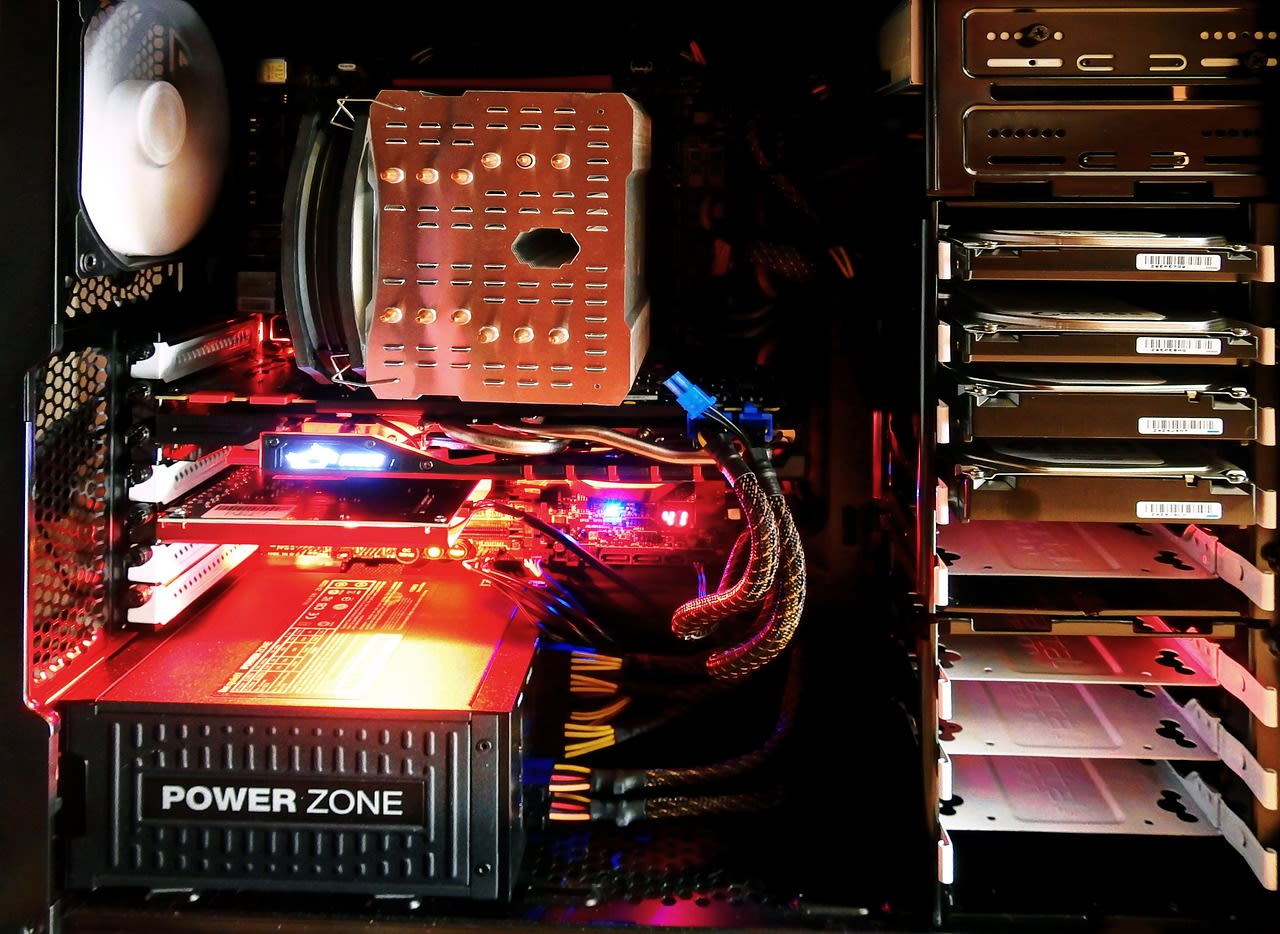
This isn't sexy, but it's essential. You've invested dozens of hours into your setup. What happens if your drive fails? Or if you accidentally delete a configuration? You need backups, and you need them automated.
For Docker configurations, I recommend a simple cron job that tars up your docker-compose.yml files and any important volumes, then syncs them to another location. For data, you've got options. Since you're using OpenMediaVault, explore its built-in backup tools with Rsync or Duplicati. For something more container-native, look at BorgBackup with Vorta as a frontend.
The key is the 3-2-1 rule: three copies of your data, on two different media, with one offsite. Your offsite could be a cloud storage provider, a friend's server, or even a USB drive you keep at work. Just make sure it's automated—manual backups almost always get forgotten.
Advanced Monitoring: Beyond Uptime Kuma
Uptime Kuma tells you if services are up or down. But what about performance? Resource usage? Detailed logs? That's where you graduate to more sophisticated monitoring.
Grafana with Prometheus is the gold standard, but it's complex. For a more approachable next step, check out Netdata. It gives you real-time performance metrics for your entire system—CPU, memory, disk I/O, network traffic, and per-container resource usage. The interface is gorgeous, and it requires minimal configuration.
Or, if you want to stick with the Docker-native approach, check out Dockprom (Docker + Prometheus). It's a pre-configured setup that gets you Grafana dashboards specifically tailored for Docker monitoring. You'll see which containers are using the most memory, track network traffic between services, and get alerts before problems become outages.
Category 4: Fun & Experimental Projects
Mealie or Grocy: Smart Home Management
Now for something completely different—services that solve non-technical problems. Mealie is a recipe manager that lets you save recipes from the web, plan meals, and generate shopping lists. Grocy is a household management system that tracks inventory, chores, and expiration dates.
Why include these? Because they demonstrate how self-hosting can extend beyond tech tools into daily life. Mealie, in particular, has become indispensable in my household. The browser extension lets you save recipes with one click, and the meal planning feature ends the "what's for dinner?" debate.
These are also great learning projects because they often require connecting to databases (PostgreSQL or MySQL) and dealing with more complex data structures. They're challenging but manageable, and the payoff is tangible in your everyday life.
FreshRSS or Miniflux: Take Back Your News
In an age of algorithmic feeds, running your own RSS reader feels refreshingly rebellious. FreshRSS is a self-hosted RSS aggregator that lets you follow blogs, news sites, and YouTube channels without algorithms deciding what you see.
The setup is simple, and the mobile apps (like Readrops for Android) sync beautifully. What starts as a technical experiment often becomes a fundamental change in how you consume information. You control the feed, there's no tracking, and you can follow niche blogs that would never appear in social media algorithms.
It's also a gateway to the IndieWeb movement—the idea of owning your content and connections. From here, you might explore Micro.blog or other self-hosted social networking tools.
Putting It All Together: A Practical Roadmap
With all these options, where should you actually start? Based on your current setup and the common pain points I've seen, here's a suggested order:
Week 1-2: Implement Vaultwarden and migrate your passwords. This gives you immediate security benefits and gets you comfortable with more sensitive data handling.
Week 3-4: Set up Nextcloud. Start with just file sync and the calendar. Get it integrated with your existing storage on OpenMediaVault.
Week 5-6: Implement backups. Seriously, don't skip this. Configure automated backups for both your Docker configurations and important data.
Week 7-8: Add Authelia for centralized authentication. Start with just protecting one or two services to get the configuration right.
From there, branch out based on your interests. Want better monitoring? Try Netdata. Tired of paper clutter? Paperless-ngx. The key is to add one service at a time, get it stable, and understand how it works before moving to the next.
Common Pitfalls & How to Avoid Them
I've made these mistakes so you don't have to. First, the "shiny object syndrome" trap. You'll see a cool new service on r/selfhosted and want to install it immediately. Resist. Finish configuring and understanding your current addition before starting the next.
Second, documentation. You think you'll remember how you configured that tricky reverse proxy rule. You won't. Use Vaultwarden's secure notes or a simple markdown file in Nextcloud to document everything. Include the docker-compose.yml, any special environment variables, and the steps you took to troubleshoot.
Third, resource management. Your server isn't infinite. Monitor your RAM and CPU usage as you add services. Some containers are surprisingly hungry. Uptime Kuma is lightweight; Nextcloud with a database can be more demanding.
Finally, the isolation temptation. It's tempting to put every service on its own subnet with complex firewall rules. For a home setup, this often creates more problems than it solves. Start with simple segmentation—maybe separate VLANs for IoT devices—but don't go overboard. Complexity is the enemy of reliability.
Conclusion: Your Journey Continues
What you've built in two months is impressive—a complete media and automation ecosystem that replaces multiple subscription services. But as you've discovered, this is just the beginning. Self-hosting isn't a destination; it's a journey of gradually reclaiming control over your digital life.
The services I've outlined here represent the logical next phase: productivity tools, security enhancements, and infrastructure improvements. Pick one that solves a real problem for you, dive in, and remember that the community is your greatest resource. The r/selfhosted community that inspired your initial setup is still there, full of people who've faced exactly the challenges you're encountering now.
Your setup will never truly be "done," and that's the beauty of it. There's always something new to learn, a better way to organize, a tool that makes life easier. Embrace the incremental improvements. In another two months, look back at what you've added. You'll be amazed at how far you've come from that first Jellyfin installation.
Now go pick one service from this list and start experimenting. The water's fine, and you've already proven you can swim.